
Conversion Confirmation
更新日:2026/11/24
This guide explains how to confirm or cancel conversions on the Conversion Confirmation screen of the A8.net advertiser dashboard.
The dashboard is available in Japanese only. In this guide, each button and menu is shown in English followed by the Japanese label you will see on screen, for example: Conversion Management > Conversion Confirmation (成果管理 > 成果確定).
The numbered markers on each screenshot match the numbered items below it.
What is Conversion Confirmation?
On this screen, you confirm or cancel the sales generated through media. Conversions you confirm become the rewards paid to media members.
- Confirmation is done per order.
- We recommend doing it regularly, for example once a day.
How to confirm or cancel conversions
Follow the steps on the actual dashboard and learn how to use this screen as you go. You can pick up the operation quickly.
Please log in before using it.
Not available in Safari.
The guide is available in Japanese only.
Interactive guide: confirm or cancel conversions (デジタルガイド:成果確定・キャンセルを行う)
Step 1. Open the Conversion Confirmation screen
From the global menu, go to Conversion Management > Conversion Confirmation (成果管理 > 成果確定).
Step 2. Select the program to process
On the program selection screen, select the program whose conversions you want to confirm.
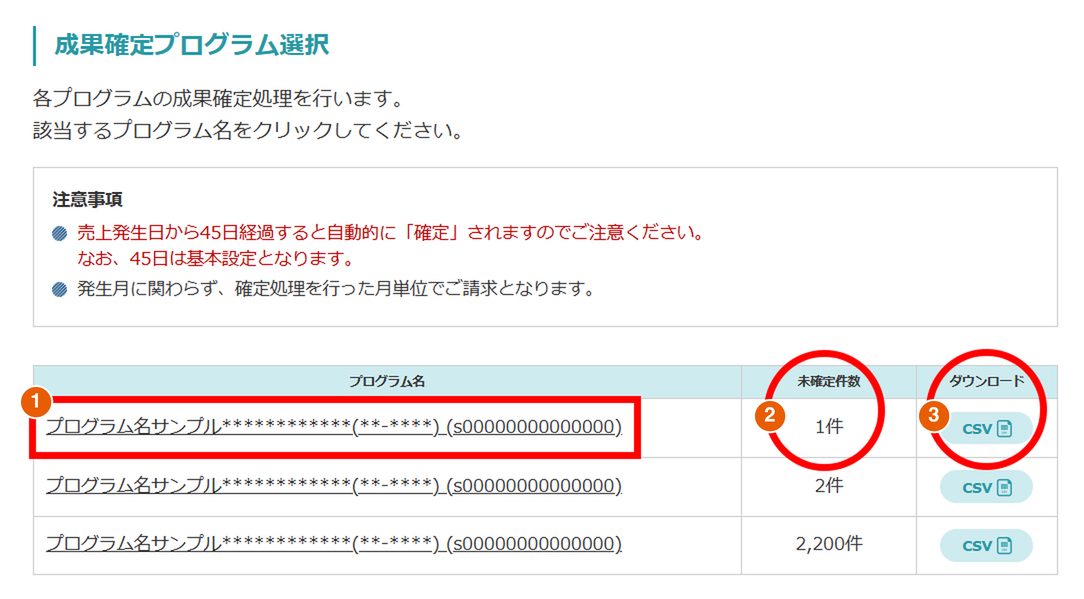
- Program name (プログラム名) – click the name of the program you want to process.
- Pending conversions (未確定件数) – shows the number of sales that are not yet confirmed or cancelled.
- CSV (CSV) – download the conversion (sales) data as a CSV file. For details, see About the conversion data (CSV).
Step 3. Confirm or cancel the conversions
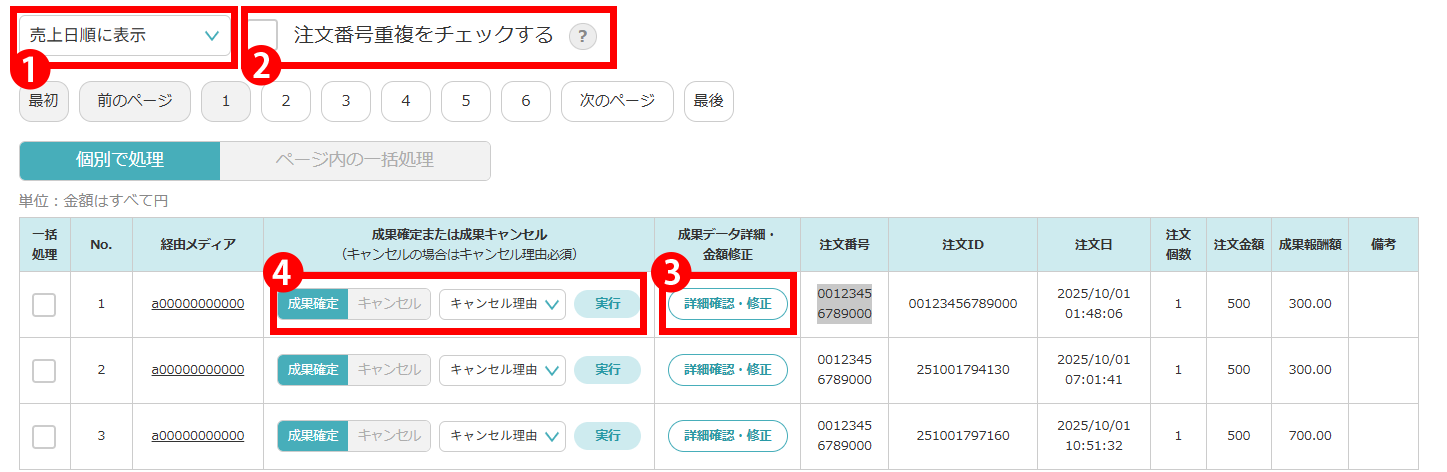
1Sort
You can sort the list in the following orders:
- By sales date (売上日順に表示)
- By order number (注文番号順に表示)
- By referring media (経由メディア順に表示)
2Check for duplicate order numbers
Select Check for duplicate order numbers (注文番号重複をチェックする) to find sales that share the same order number. The list switches to order number order so that you can check for duplicates.
- Only the new advertiser dashboard can check for duplicates across all order data.
- Notes on using the duplicate check are shown at the top of the page. Please read them carefully.
3View the conversion details
Click View details / edit (詳細確認・修正) to check the details of the conversion.
4Confirm or cancel the conversion, and execute
| To confirm | Check that Confirm or cancel conversion (成果確定または成果キャンセル) is set to Confirm (成果確定), then click Execute (実行). |
|---|---|
| To cancel | Set Confirm or cancel conversion (成果確定または成果キャンセル) to Cancel (キャンセル), select a cancellation reason (キャンセル理由), and then click Execute (実行). A cancellation reason is required. |
Bulk processing (processing many conversions at once)
Use Bulk process on this page (ページ内の一括処理) to confirm or cancel many conversions at once.
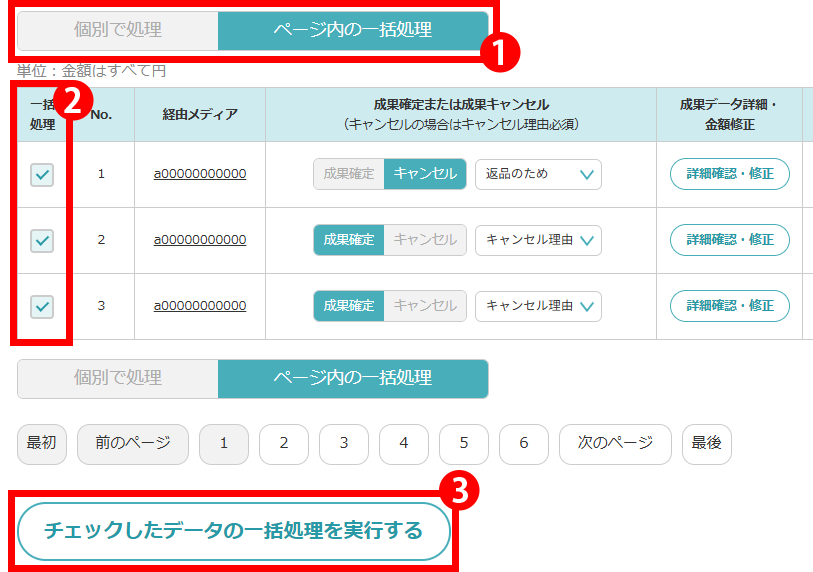
1Switch the mode
Click Bulk process on this page (ページ内の一括処理) to switch from Process individually (個別で処理).
2Check the conversions to process
The checkboxes in the Bulk (一括処理) column are selected automatically.
- For conversions you want to cancel, select a cancellation reason in advance. Any conversion without a cancellation reason will be confirmed. Please be careful.
- For orders you do not want to process in bulk, clear the checkbox in the Bulk (一括処理) column.
Even if Confirm (成果確定) is selected, the conversion is cancelled when a cancellation reason is selected. Please be careful.
3Execute
After checking the data, click Process the checked data in bulk (チェックしたデータの一括処理を実行する).
This processes all the conversions on the page at once. Bulk processing applies only to the data on the displayed page. For the second page and later, move to each page and process it again.
Notes on conversion confirmation
- Notes on conversion confirmation
-
- Confirmation is done per order.
- You can undo a confirmation or cancellation until the end of the same day. Please confirm and cancel carefully.
- Conversions are automatically confirmed 45 days after the sales date. Please be careful.
The number of days depends on your settings. Please check the automatic confirmation period of your program. - While the daily aggregation is running (usually from 00:00 until early morning), you can view orders but cannot confirm them. Thank you for your understanding.
- Conversions marked A8 test conversion (A8テスト成果) are cancelled by A8.net. Even if you confirm one by mistake, its reward is not included in your invoice.
- Any conversion without a cancellation reason is confirmed. To cancel a conversion, you must select a cancellation reason.
- You may be logged out after about 20 to 30 minutes while you work.
- If the order number is blank and you cannot confirm or cancel a conversion, please contact us.
About the conversion data (CSV)

- This CSV shows conversion information for each order.
- The CSV also includes conversions confirmed on the same day. “The same day” means the period before the daily processing (usually 00:00). When you confirm or cancel a conversion, this is shown in the Status (ステータス) column.
- Order ID (注文ID), Product ID (商品ID) and Contract ID (契約ID) are values from our database.
- For orders created with the Create order (注文作成) function, the Click date (クリック日) is blank.
Glossary
| On screen (Japanese) | In this guide | Meaning |
|---|---|---|
| 成果 | Conversion | An action (purchase, sign-up, etc.) that earns a reward |
| 発生 | Generated | A conversion has occurred and is waiting for review |
| 確定 | Confirmed | You approved the conversion; the reward is paid |
| キャンセル | Cancelled | You rejected the conversion; no reward is paid |
| 未確定 | Pending | The conversion has not been reviewed yet |
| キャンセル理由 | Cancellation reason | The reason you select when you cancel a conversion (required) |
| メディア | Media | A publisher (affiliate site) promoting your program |
| プログラム | Program | Your affiliate campaign on A8.net |