
Monthly Report (Generated / Confirmed)
更新日:2026/11/24
This guide explains how to view the Monthly Report in the A8.net advertiser dashboard.
The dashboard is available in Japanese only. In this guide, each button and menu is shown in English followed by the Japanese label you will see on screen, for example: Report > Monthly (レポート > 月別).
The numbered orange markers on each screenshot match the numbered items below it.
What is the Monthly Report?
The Monthly Report shows your results month by month. It has two tabs, each counting conversions by a different date.
| Tab | Counts conversions by | Use it to see |
|---|---|---|
| Generated Report 発生レポート |
The date the conversion occurred | New conversions that occurred in each month |
| Confirmed Report 確定レポート |
The date the conversion was confirmed | Conversions you confirmed in each month |
- Data is shown one year at a time.
- You can go back as far as 2014.
How to view the Generated Report
Follow the steps on the actual dashboard and learn how to use this screen as you go. You can pick up the operation quickly.
Please log in before using it.
Not available in Safari.
The guide is available in Japanese only.
Interactive guide: view your monthly results in a report (Monthly Report) (デジタルガイド:これまでの毎月の結果をレポートでみたい(月別レポート))
Step 1. Open the report
From the global menu, go to Report > Monthly (レポート > 月別). The Generated Report opens by default.

- Generated Report (発生レポート) – shown by default.
- Confirmed Report (確定レポート) – switch to this tab to see confirmed conversions.
Step 2. Select the program, period and media IDs
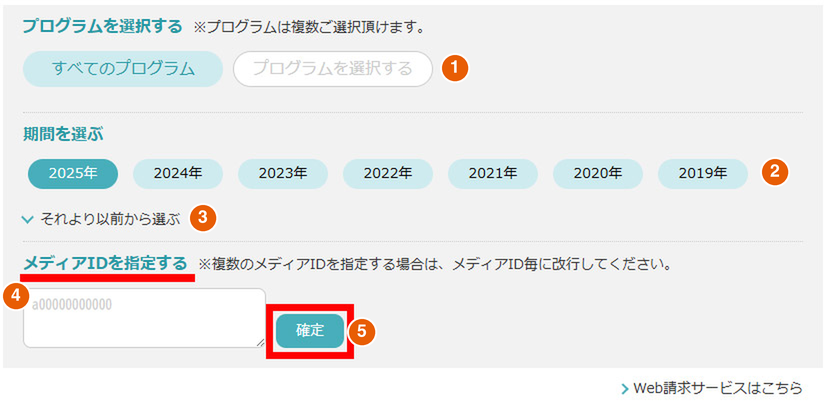
- Select program (プログラムを選択する) – “All programs” (すべてのプログラム) is selected by default. You can select more than one program.
- Select period (期間を選ぶ) – click a year.
- Earlier years (それより以前から選ぶ) – click to show older years.
- Specify media IDs (メディアIDを指定する) – optional. To check specific media (publishers), enter their IDs, one per line.
- Apply (確定) – click after entering media IDs.
The report updates as soon as you select a program or period. Media IDs take effect only after you click Apply (確定).
Step 3. Check the data
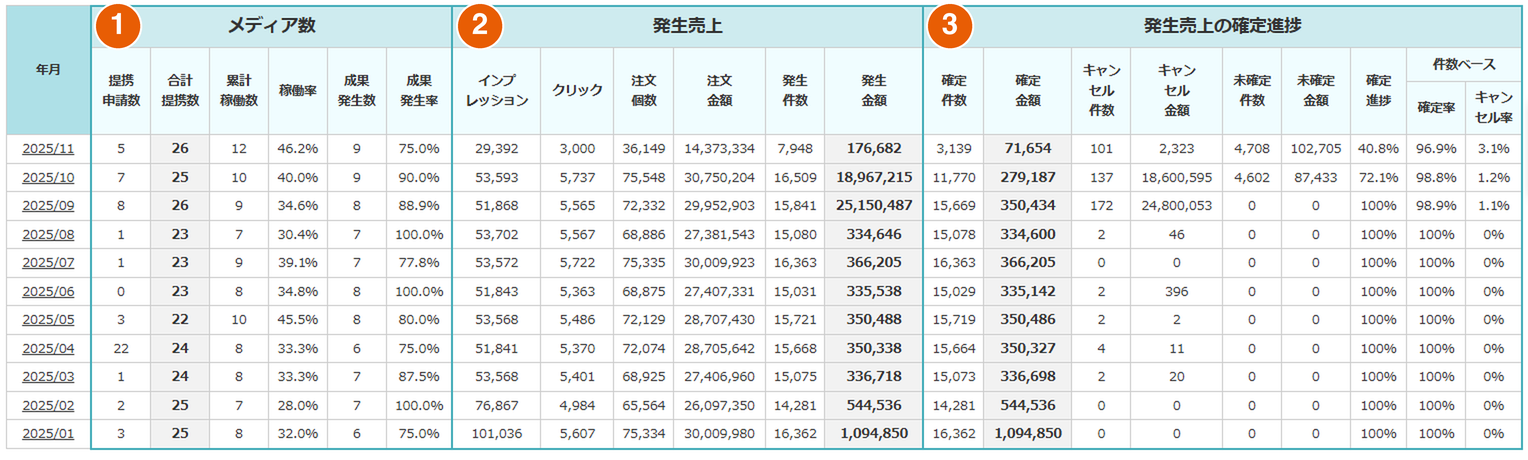
Each row is one month. The columns are grouped into three sections, explained in the next part of this guide.
- Media counts (メディア数)
- Generated sales (発生売上)
- Confirmation progress of generated sales (発生売上の確定進捗)
You can also download the data as a CSV or Excel file.
Generated Report: column definitions
| Section | Column | Description |
|---|---|---|
| Media counts メディア数 |
Partnership applications 提携申請数 |
Number of media that applied to partner with your program. |
| Total partners 合計提携数 |
Current month: the highest number of media partnered with your program during the month. Media that leave A8.net or end the partnership during the month are not subtracted. Past months: media that left or ended the partnership are subtracted. |
|
| Active media 累計稼働数 |
Number of media that placed your ad link and recorded at least one impression or click in the month. Media that placed the link but recorded no impressions or clicks are not counted. | |
| Activity rate 稼働率 |
Active media ÷ Total partners × 100 (%) | |
| Media with conversions 成果発生数 |
Number of media that generated at least one conversion in the period. | |
| Conversion media rate 成果発生率 |
Share of active media that generated conversions. Media with conversions ÷ Active media × 100 (%) |
|
| Generated sales 発生売上 |
Impressions インプレッション |
Counted when the impression tag is displayed. |
| Clicks クリック |
Number of times users moved from an ad link to your site. | |
| Items ordered 注文個数 |
Number of items purchased. If one conversion includes 2 items, it counts as 2. | |
| Order amount 注文金額 |
Total sales amount of all generated conversions, whether confirmed or cancelled. | |
| Generated conversions 発生件数 |
Total number of generated conversions, whether confirmed or cancelled. | |
| Generated amount 発生金額 |
Reward amount of generated conversions. If an amount was corrected, the corrected value is shown. The value does not change when a conversion is cancelled. | |
| Confirmation progress of generated sales 発生売上の確定進捗 |
Confirmed conversions 確定件数 |
Number of conversions whose review is complete, whether confirmed or cancelled. |
| Confirmed amount 確定金額 |
Total amount of confirmed conversions. | |
| Cancelled conversions キャンセル件数 |
Number of cancelled conversions. | |
| Cancelled amount キャンセル金額 |
Total amount of cancelled conversions. | |
| Pending conversions 未確定件数 |
Number of conversions not yet reviewed. | |
| Pending amount 未確定金額 |
Total amount of conversions not yet reviewed. | |
| Review progress 確定進捗 |
Share of generated conversions whose review is complete. | |
| Confirmation rate 確定率 |
Share of conversions generated from the 1st of the month to yesterday that were confirmed by the previous day. Rounded down to one decimal place. Confirmed ÷ (Confirmed + Cancelled) × 100 (%) |
|
| Cancellation rate キャンセル率 |
Share of conversions generated from the 1st of the month to yesterday that were cancelled by the previous day. Rounded down to one decimal place. Cancelled ÷ (Confirmed + Cancelled) × 100 (%) |
How to view the Confirmed Report
Step 1. Switch to the Confirmed tab

- Click the Confirmed Report (確定レポート) tab.
Step 2. Select the program, period and media IDs
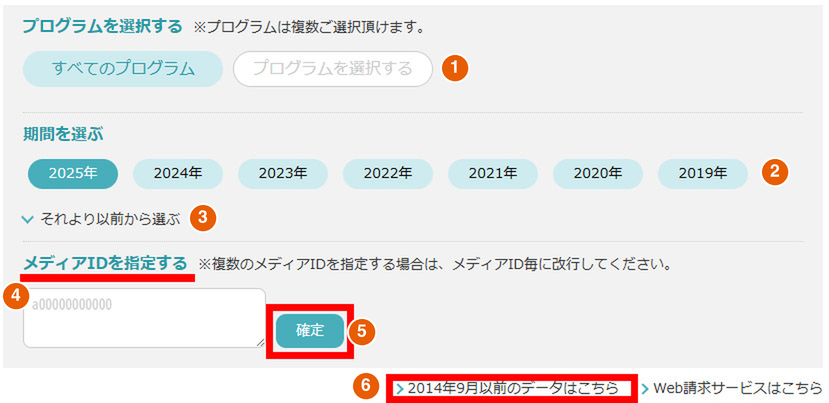
- Select program (プログラムを選択する) – “All programs” (すべてのプログラム) is selected by default.
- Select period (期間を選ぶ) – click a year.
- Earlier years (それより以前から選ぶ) – click to show older years.
- Specify media IDs (メディアIDを指定する) – optional. Enter one ID per line.
- Apply (確定) – click after entering media IDs.
- Data before September 2014 (2014年9月以前のデータはこちら) – use this link to view older data.
As with the Generated Report, the program and period apply immediately. Media IDs apply after you click Apply (確定).
Step 3. Check the data
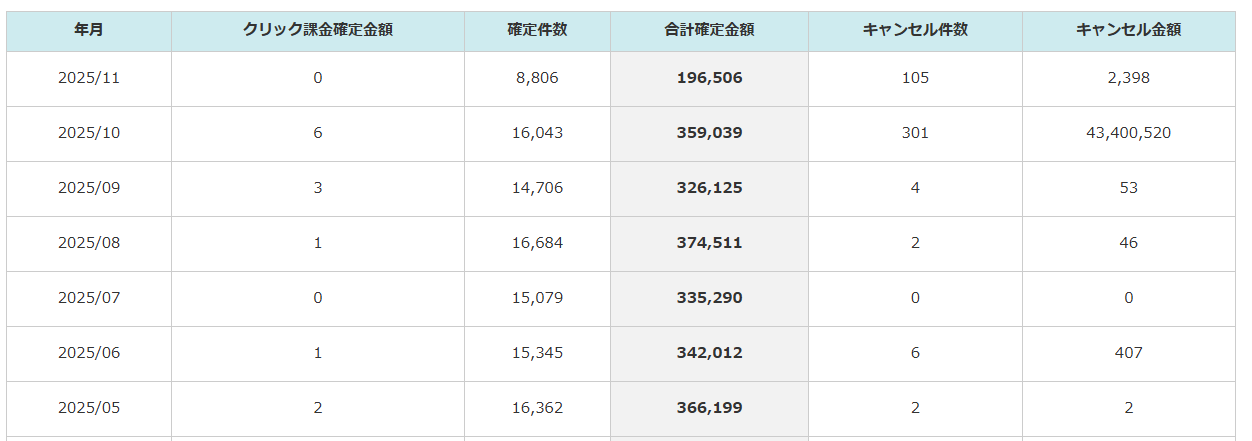
Each row is one month. You can also download the data as a CSV or Excel file.
Confirmed Report: column definitions
| Column | Description |
|---|---|
| Confirmed click-based amount クリック課金確定金額 |
Shown only for advertisers with pay-per-click rewards set up. |
| Confirmed conversions 確定件数 |
Number of conversions confirmed. |
| Total confirmed amount 合計確定金額 |
Total amount of confirmed conversions. |
| Cancelled conversions キャンセル件数 |
Number of conversions cancelled. |
| Cancelled amount キャンセル金額 |
Total amount of cancelled conversions. |
Glossary
| On screen (Japanese) | In this guide | Meaning |
|---|---|---|
| 成果 | Conversion | An action (purchase, sign-up, etc.) that earns a reward |
| 発生 | Generated | A conversion has occurred and is waiting for review |
| 確定 | Confirmed | You approved the conversion; the reward is paid |
| キャンセル | Cancelled | You rejected the conversion; no reward is paid |
| 未確定 | Pending | The conversion has not been reviewed yet |
| メディア | Media | A publisher (affiliate site) promoting your program |
| 提携 | Partnership | The link between your program and a media |
| 稼働 | Active | A media that recorded at least one impression or click |
| プログラム | Program | Your affiliate campaign on A8.net |
| 確定(button) | Apply | The button that applies the media ID filter |