
Terminate Partnership
更新日:2026/11/24
This guide explains how to terminate a partnership with a media.
The dashboard is available in Japanese only. In this guide, each button and menu is shown in English followed by the Japanese label you will see on screen, for example: Media Management > Terminate Partnership (メディア管理 > 提携解除).
The numbered orange markers on each screenshot match the numbered items below it.
Before you terminate a partnership
When you terminate a partnership, please give the media advance notice using the news distribution function. State the termination date and the reason.
Go to News Distribution (ニュース配信)
Please log in before using it.
How to terminate a partnership
Follow the steps on the actual dashboard and learn how to use this screen as you go. You can pick up the operation quickly.
Please log in before using it.
Not available in Safari.
The guide is available in Japanese only.
Interactive guide: terminate a partnership with a media (デジタルガイド:メディアとの提携を解除したい)
Step 1. Open the Terminate Partnership page
From the global menu, go to Media Management > Terminate Partnership (メディア管理 > 提携解除).
Step 2. Specify the media and click Search
Enter the conditions of the media whose partnership you want to terminate, and click Search (検索). If you already know which media you want to terminate, we recommend entering its media ID.
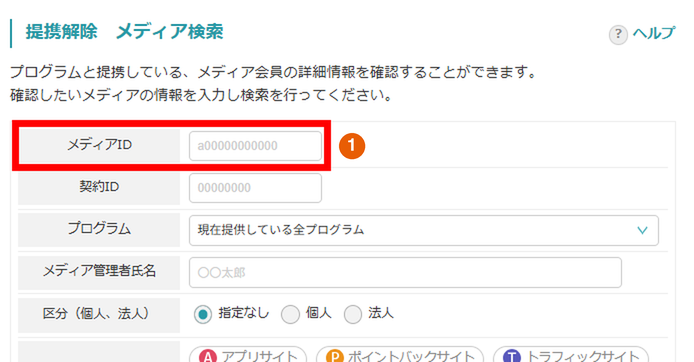
- Media ID (メディアID) – enter the ID of the media you want to terminate.
You can also use the other search conditions. They are the same as on the Media Search page.
Step 3. Terminate the partnership
The search results are displayed. Click Terminate (解除) for the media whose partnership you want to terminate.
Please be careful not to choose the wrong media.
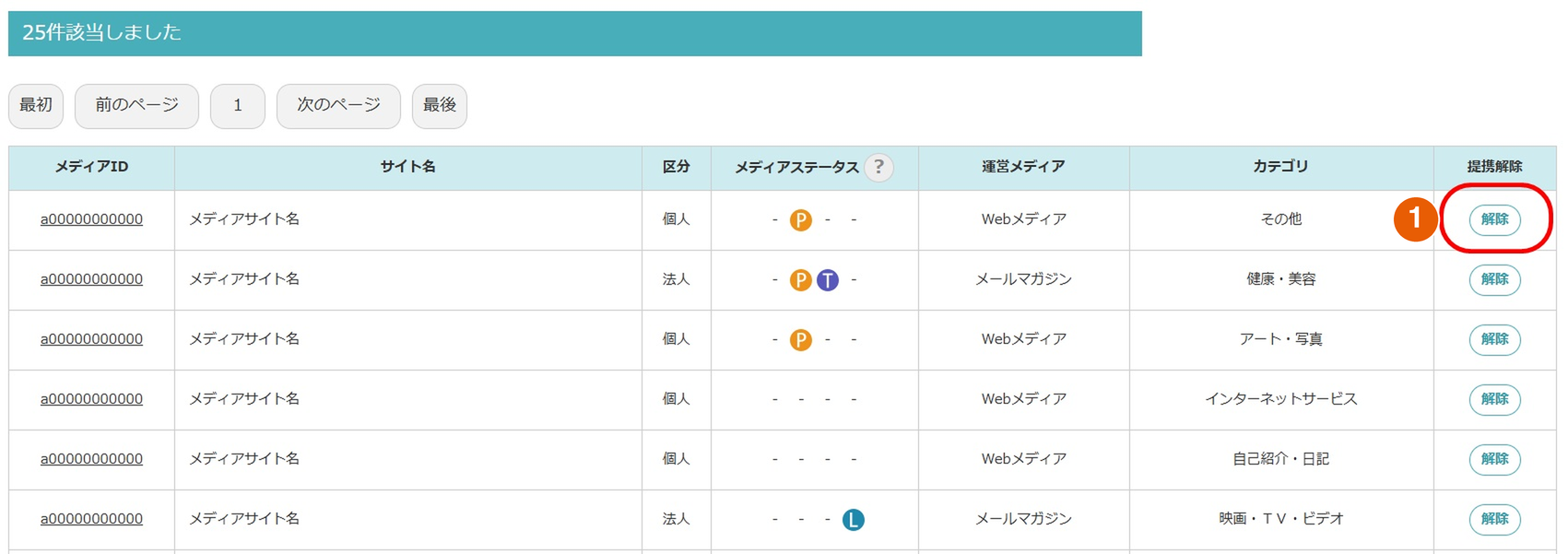
- Terminate (解除) – click the button in the Terminate partnership (提携解除) column of the media you want to terminate.
If you want to terminate a media that shows Please contact A8.net (A8.netにお問い合わせください), please contact your A8.net sales representative or use the inquiry form (お問い合わせ).
Step 4. Set the message to send to the media
- Required
- After the partnership is terminated, media members may ask you why. You must therefore state the reason for the termination in the message.
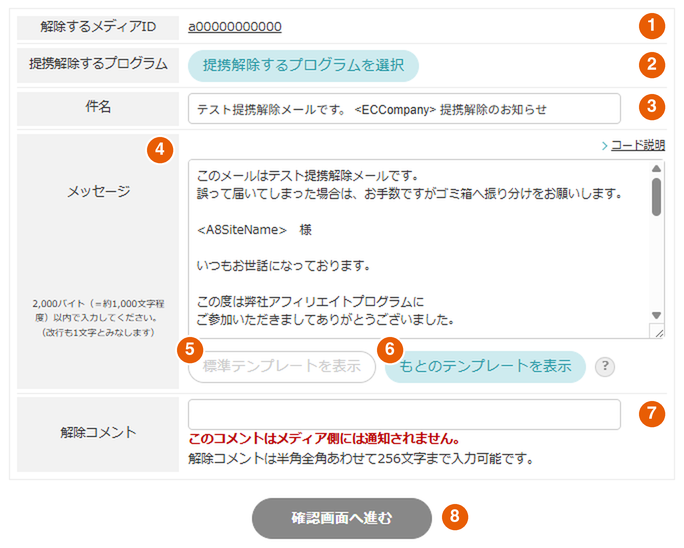
- Media ID to terminate (解除するメディアID) – the media ID you selected is shown. A termination cannot be undone. Please be careful not to make a mistake.
- Programs to terminate partnership (提携解除するプログラム) – select all the programs you want to terminate the partnership for.
- Subject (件名) – enter the subject of the message to send.
- Message (メッセージ) – enter the message to send. If you have registered your own template for partnership termination, it is shown by default.
- Show standard template (標準テンプレートを表示) – shows the partnership termination email template prepared by A8.net.
- Show original template (もとのテンプレートを表示) – shows the template that was displayed by default.
- Termination comment (解除コメント) – leave a note, such as the reason for the termination. This comment is not sent to the media. If the media applies for a partnership again, you can check the comment in the termination history.
- Go to confirmation screen (確認画面へ進む) – click after you finish entering the message (see Step 5).
Step 5. Execute the termination
After you finish entering the message, click Go to confirmation screen (確認画面へ進む). The partnership termination and message confirmation screen opens.
Before you execute the termination, please check the following carefully:
- The media to terminate
- The content of the message
- The merge codes (変換コード(差し込み設定))
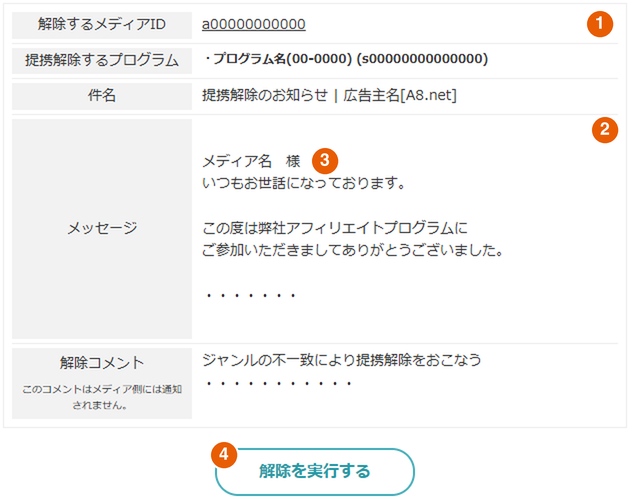
- Media ID to terminate (解除するメディアID) – check the media.
- Message (メッセージ) – check the content of the message.
- Merge codes (変換コード) – check that codes such as the media name are inserted correctly.
- Execute termination (解除を実行する) – click if everything is correct.
When the partnership termination completion screen (提携解除完了画面) is displayed without a problem, the partnership has been terminated.