
Bulk Upload of Conversion Confirmation Data
更新日:2026/11/24
This guide explains how to confirm or cancel many conversions at once by uploading a CSV file, and what to be careful about.
The dashboard is available in Japanese only. In this guide, each button and menu is shown in English followed by the Japanese label you will see on screen, for example: Conversion Management > Bulk Upload of Conversion Confirmation Data (成果管理 > 成果確定データの一括アップロード).
The numbered orange markers on each screenshot match the numbered items below it.
What is bulk upload of conversion confirmation data?
This function lets you confirm or cancel many conversions at once. You enter a status (confirmed or cancelled) in the generated sales data (CSV) and upload the file.
- You upload data for one program at a time.
- Uploaded files are processed in the order they were uploaded. Depending on the processing status, a conversion may be confirmed after the day you upload it.
- Confirmation data is processed between 6:00 and 22:00.
How to download the CSV and edit the data
Follow the steps on the actual dashboard and learn how to use this screen as you go. You can pick up the operation quickly.
Please log in before using it.
Not available in Safari.
The guide is available in Japanese only.
Interactive guide: bulk upload of conversion confirmation data (preparation) (デジタルガイド:成果確定一括アップロード【準備】)
Step 1. Open the bulk upload page
From the global menu, go to Conversion Management > Bulk Upload of Conversion Confirmation Data (成果管理 > 成果確定データの一括アップロード).
Step 2. Select the program and download the CSV
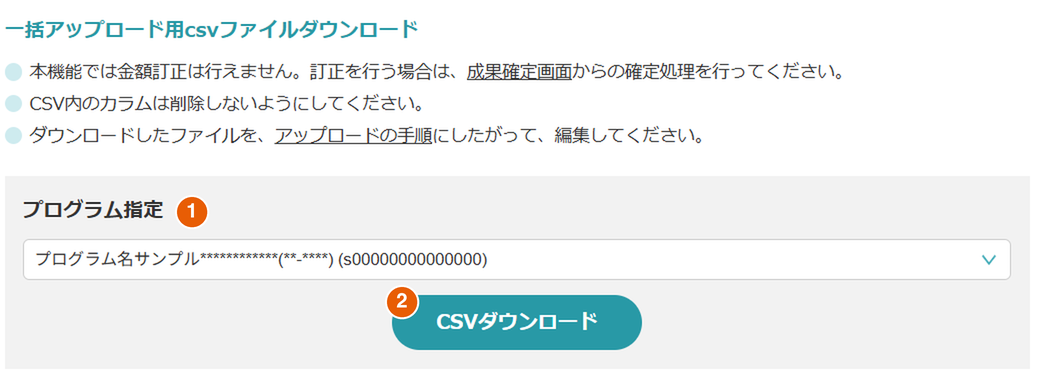
- Specify program (プログラム指定) – select the program whose conversions you want to confirm in bulk. Only programs that have unconfirmed sales are listed.
- Download CSV (CSVダウンロード) – click to download the CSV file.
The screen also shows the following notes:
- You cannot correct amounts with this function. To correct an amount, confirm the conversion from the Conversion Confirmation screen.
- Do not delete any columns in the CSV.
- Edit the downloaded file according to the upload procedure.
Step 3. Check and edit the downloaded CSV
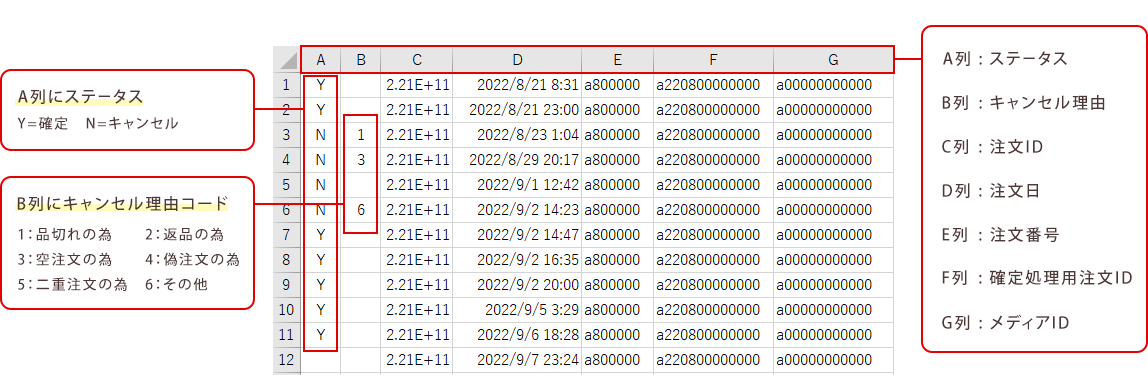
Review the orders, and enter a status in column A to confirm or cancel each one. As shown in the image, enter the letter Y or N.
| To | Enter in column A |
|---|---|
| Confirm | Y |
| Cancel | N |
Delete the rows you do not want to confirm or cancel.
To cancel a conversion, enter a cancellation reason code (1 to 6) in column B.
If you leave it blank, the conversion is processed as “6 (Other)”.
| Code | Cancellation reason |
|---|---|
| 1 | Out of stock (品切れの為) |
| 2 | Returned item (返品の為) |
| 3 | Empty order (空注文の為) |
| 4 | Fraudulent order (偽注文の為) |
| 5 | Duplicate order (二重注文の為) |
| 6 | Other (その他) |
The columns of the CSV are as follows:
| Column | Contents |
|---|---|
| A | Status (ステータス) |
| B | Cancellation reason (キャンセル理由) |
| C | Order ID (注文ID) |
| D | Order date (注文日) |
| E | Order number (注文番号) |
| F | Order ID for confirmation processing (確定処理用注文ID) |
| G | Media ID (メディアID) |
How to upload the edited data
Follow the steps on the actual dashboard and learn how to use this screen as you go. You can pick up the operation quickly.
Please log in before using it.
Not available in Safari.
The guide is available in Japanese only.
Interactive guide: bulk upload of conversion confirmation data (execution) (デジタルガイド:成果確定一括アップロード【実行】)
Step 1. Upload the edited CSV file
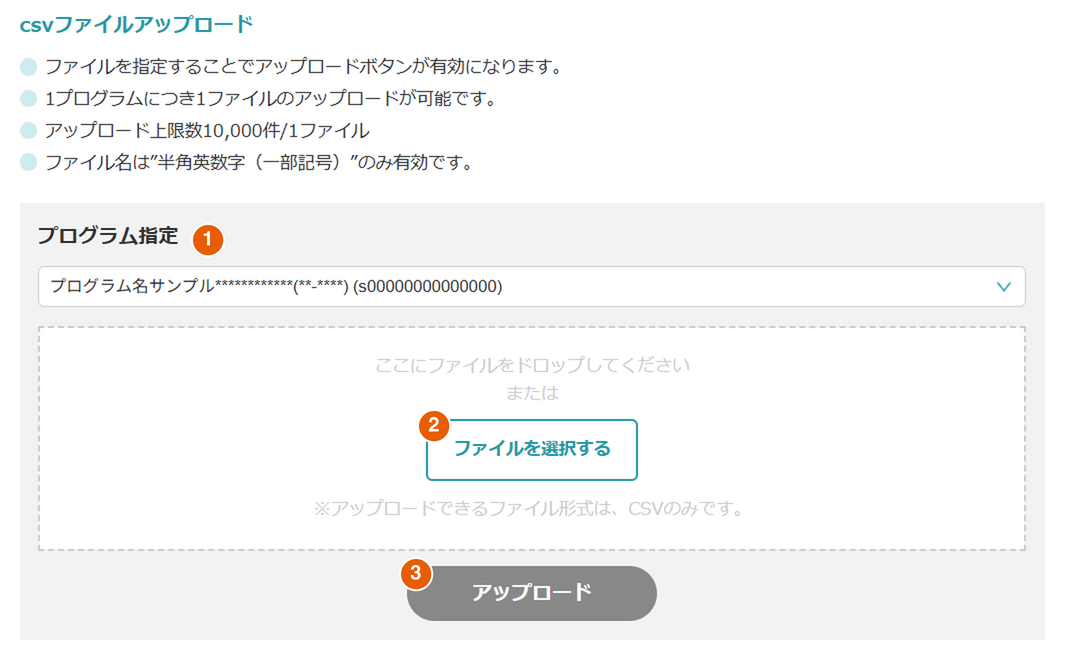
- Specify program (プログラム指定) – select the program to confirm in bulk.
- Select file (ファイルを選択する) – you can specify the CSV file by dragging and dropping it into the area, or by clicking this button to choose a file. Only CSV files can be uploaded.
- Upload (アップロード) – after you specify the file, click this button.
Step 2. Check the status in the upload history
While the file is being processed, its status is shown in the file upload history at the bottom of the screen.
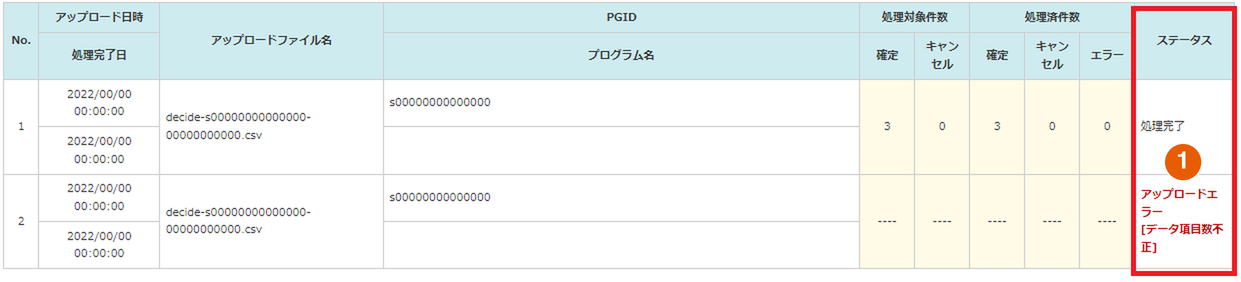
- Status (ステータス) – shows the processing result, for example Processing complete (処理完了) or Upload error (アップロードエラー) with the reason.
Data specifications
- Data is handled per program. You can upload up to 10,000 records per program at a time. If you have more than 10,000 records, split them into separate files and upload each one. If you have several programs, you can upload 10,000 records for each program.
- The file name may contain only single-byte alphanumeric characters (some symbols are also allowed).
- If the CSV contains conversions from a program other than the one you specified when uploading, the CSV is treated as an error.
Notes
- Notes
-
- If you upload CSV files for several programs, they cannot be processed at the same time. They are processed one after another. Depending on the time, a conversion may not be confirmed on the day you upload it.
- You cannot correct amounts while confirming in bulk. Correct the amounts in advance on the conversion details and amount correction screen (成果データ詳細・金額修正), and then upload.
- Processing can take about 5 minutes to start. This is an estimate for files uploaded now.
- The unconfirmed conversion data you download with this function is per order. If an order includes several products and you need to confirm or correct each product separately, use the confirmation function on the Conversion Confirmation screen.
- If the number of records to process is 0, an error occurs.
- Depending on server load, processing may take longer to complete.
Glossary
| On screen (Japanese) | In this guide | Meaning |
|---|---|---|
| 成果 | Conversion | An action (purchase, sign-up, etc.) that earns a reward |
| 発生 | Generated | A conversion has occurred and is waiting for review |
| 確定 | Confirmed | You approved the conversion; the reward is paid |
| キャンセル | Cancelled | You rejected the conversion; no reward is paid |
| キャンセル理由 | Cancellation reason | The reason you enter when you cancel a conversion |
| メディア | Media | A publisher (affiliate site) promoting your program |
| プログラム | Program | Your affiliate campaign on A8.net |