
Creative Report (Total / Daily)
更新日:2026/11/24
This guide explains how to view the Creative Total Report and the Creative Daily Report in the A8.net advertiser dashboard.
The dashboard is available in Japanese only. In this guide, each button and menu is shown in English followed by the Japanese label you will see on screen, for example: Report > Creative (レポート > 素材別).
The numbered orange markers on each screenshot match the numbered items below it.
- The Creative Reports (Total and Daily) currently show confirmed data only. Cancelled data is excluded.
- For this reason, the numbers may not match those in other reports.
- This specification may change in the future.
What are the Creative Reports?
Creative Total Report
The Creative Total Report shows your results for each creative.
- Only generated data is shown. The report does not have separate Generated and Confirmed tabs.
- You can view up to 100 days of data at a time.
- You can view data from the first day of the month 14 months ago up to yesterday.
- Creative previews always show the latest version of the creative.
- Data that could not be measured correctly is excluded, so the numbers may not match those in other reports.
- For email ads, impressions (ad exposures) are not counted.
Creative Daily Report
The Creative Daily Report shows the data for each creative day by day.
- Only generated data is shown.
- You can view up to 100 days of data at a time.
- You can view data from the first day of the month 14 months ago up to yesterday.
- A creative type of “Unknown” means the data could not be measured correctly. The same applies when, for some reason, a conversion is measured under a creative type different from the one registered for the creative.
- For email ads, impressions (ad exposures) are not counted.
How to view the Creative Total Report
Step 1. Open the report
From the global menu, go to Report > Creative (レポート > 素材別).
Step 2. Select the program, period, creative type and media IDs
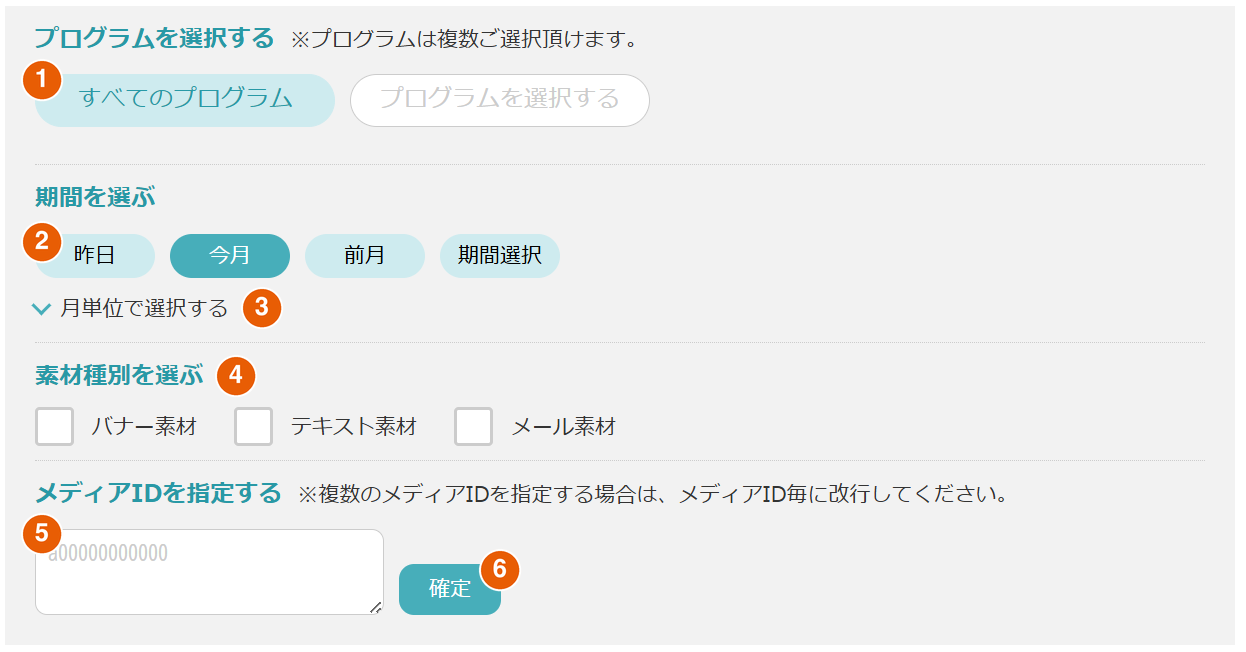
- Select program (プログラムを選択する) – “All programs” (すべてのプログラム) is selected by default. You can select more than one program.
- Select period (期間を選ぶ) – choose Yesterday (昨日), This month (今月), Last month (前月) or Specify period (期間選択).
- Select by month (月単位で選択する) – click to choose a month earlier than last month.
- Select creative type (素材種別を選ぶ) – optional. To narrow the results by type, check the types you want: Banner (バナー素材), Text (テキスト素材), Email (メール素材).
- Specify media IDs (メディアIDを指定する) – optional. To check specific media (publishers), enter their IDs, one per line.
- Apply (確定) – click after entering media IDs.
The report updates as soon as you select a program or period. Media IDs take effect only after you click Apply (確定).
Step 3. Check the data
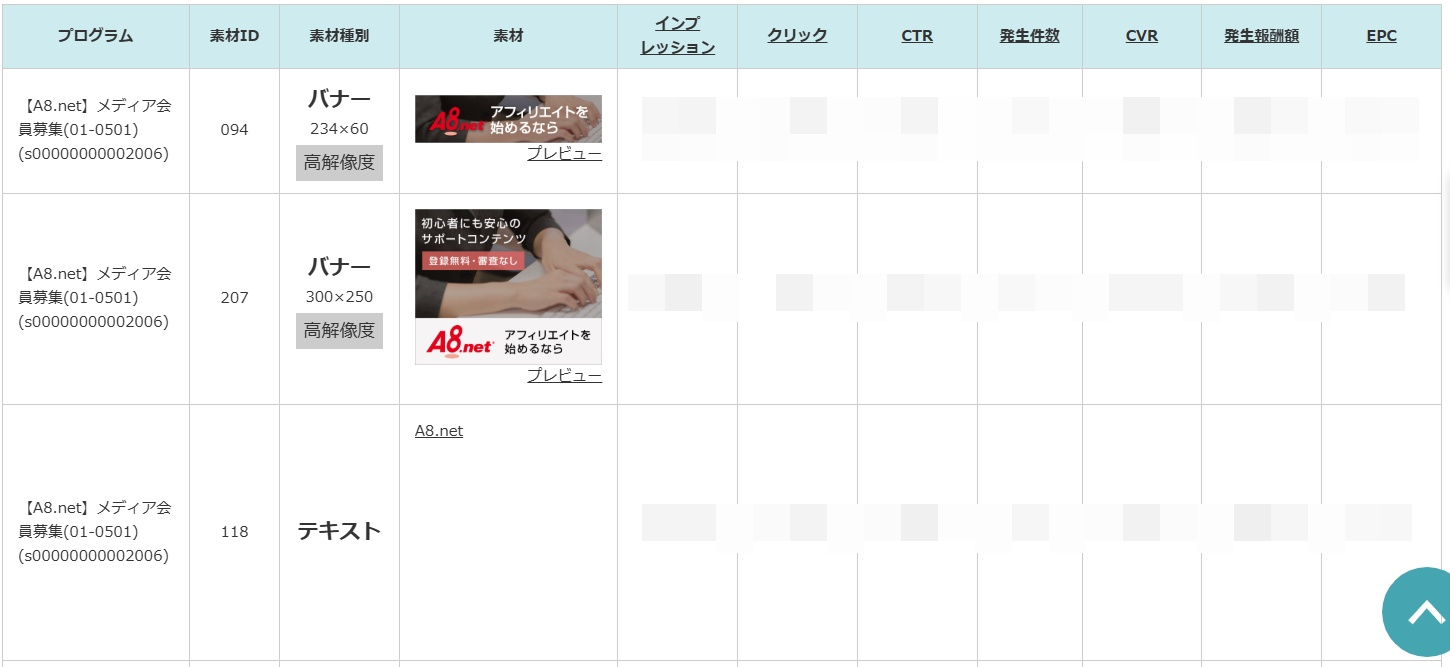
You can also download the data as a CSV or Excel file.
How to view the Creative Daily Report
Step 1. Open the report
From the global menu, go to Report > Creative Daily (レポート > 素材日別).
Step 2. Select the program, period, creative type and media IDs
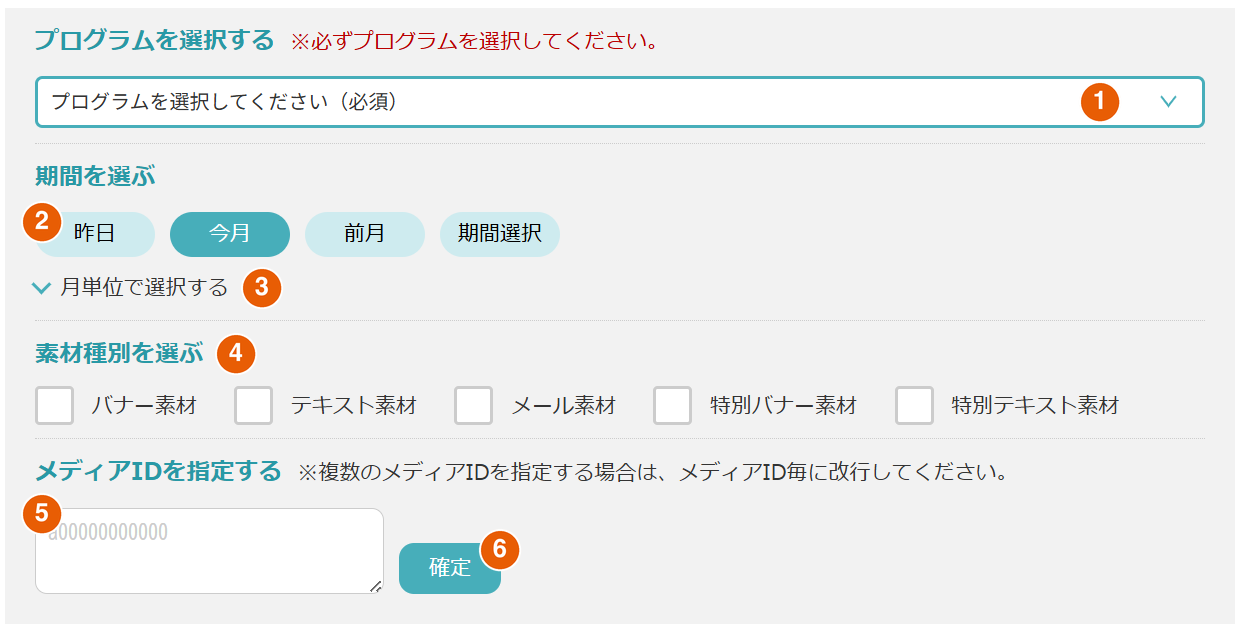
- Select program (プログラムを選択する) – required. Select the program from the drop-down list.
- Select period (期間を選ぶ) – choose Yesterday (昨日), This month (今月), Last month (前月) or Specify period (期間選択).
- Select by month (月単位で選択する) – click to choose a month earlier than last month.
- Select creative type (素材種別を選ぶ) – optional. To narrow the results by type, check the types you want: Banner (バナー素材), Text (テキスト素材), Email (メール素材), Special banner (特別バナー素材), Special text (特別テキスト素材).
- Specify media IDs (メディアIDを指定する) – optional. To check specific media (publishers), enter their IDs, one per line.
- Apply (確定) – click after entering media IDs.
You must select a program. Media IDs take effect only after you click Apply (確定).
Step 3. Check the data
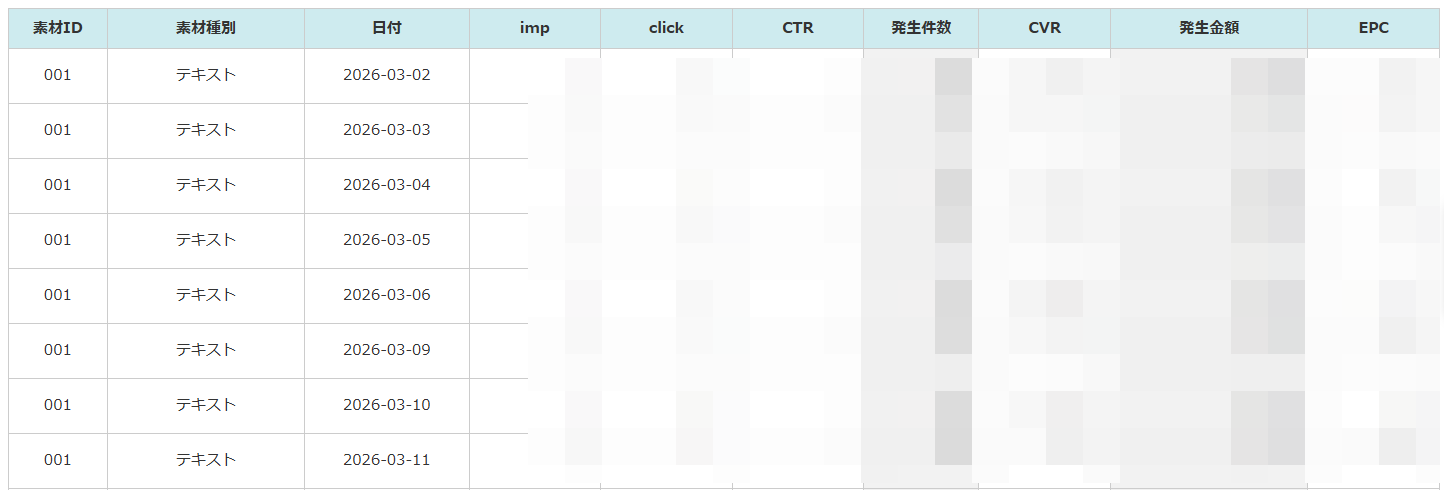
You can also download the data as a CSV or Excel file.
Creative Reports: column definitions
These columns apply to both the Creative Total Report and the Creative Daily Report.
| Column | Description |
|---|---|
| Creative ID 素材ID |
The ID of each creative. See “About creative IDs” below. |
| Creative type 素材種別 |
The type of creative, such as banner, text or email. For banners, information such as the banner size and high resolution is also shown. |
| Creative 素材 |
The target ad creative. Large banners are shown reduced; to check the actual size, click Preview (プレビュー). |
| Impressions インプレッション(日別レポートでは「imp」) |
Counted when the impression tag is displayed. |
| Clicks クリック(日別レポートでは「click」) |
Number of times users moved from an ad link to your site. |
| CTR CTR |
Share of impressions that were clicked. Clicks ÷ Impressions × 100 (%) |
| Generated conversions 発生件数 |
Total number of generated conversions, whether confirmed or cancelled. |
| CVR CVR |
Share of clicks that resulted in a generated conversion. Generated conversions ÷ Clicks × 100 (%) |
| Generated reward amount 発生報酬額(日別レポートでは「発生金額」) |
Total reward amount of generated conversions, whether confirmed or cancelled. |
| EPC EPC |
Generated reward amount per click. EPC = Generated reward amount ÷ Clicks |
About creative IDs
Creative IDs 997, 998 and 999 show the figures of ad creatives created with “Product links” (商品リンク).
| Creative ID | Type of the product-link creative |
|---|---|
| 997 | Free (フリー) |
| 998 | Text (テキスト) |
| 999 | Banner (バナー) |
Glossary
| On screen (Japanese) | In this guide | Meaning |
|---|---|---|
| 成果 | Conversion | An action (purchase, sign-up, etc.) that earns a reward |
| 発生 | Generated | A conversion has occurred and is waiting for review |
| 確定 | Confirmed | You approved the conversion; the reward is paid |
| キャンセル | Cancelled | You rejected the conversion; no reward is paid |
| メディア | Media | A publisher (affiliate site) promoting your program |
| プログラム | Program | Your affiliate campaign on A8.net |
| 素材 | Creative | An ad (banner, text link, email, etc.) that media place to promote your program |
| 素材種別 | Creative type | The kind of creative, such as banner, text or email |
| 確定(button) | Apply | The button that applies the media ID filter |